Source System Down Mode
When a source system (MAXIS, METS, PRISM, SSIS, or SMI) is unavailable, the ECF Support team puts ECF in down mode for that system. In down mode, ECF functionality is limited, as described below
 MAXIS, METS, PRISM, or SSIS Down Mode
What is not available?
- Search: You cannot search for a person using the case number associated with the down source system. Instead, search by SMI number.
- List of cases: The cases associated with the down source system do not appear in a list of cases.
- My ECF page: In SSIS down mode, no cases appear in the SSIS Assigned Cases table.
- Notifications: All notifications are disabled and you cannot work notifications. This includes mystery items, subscriptions, imaging and upload notifications.
- Content properties: You should not modify content properties. If you do, notifications will not be generated for the worker who is subscribed or assigned to that case.
- Send content: In the Mail method, addresses from the down source system do not appear in the Recipient panel.
- Upload content: You cannot upload content (either case- or person-based) to a case associated with the down source system.
What is available?
- View cases: You can view cases from other source systems.
- New case content: Content that Imaging Operations scans is not added to any case while ECF is in down mode. However, the content is not lost and will be added to the cases once down mode is turned off.
- Send content: You can still send jobs, but the job remains in Waiting status until down mode is turned off.
SMI Down Mode
What is not available?
- On the Sign In to ECF - SMI Sign In page, the State ID and Password fields are disabled. Click the Go to ECF button to complete your sign-in to ECF. After you sign in, a status message appears above the navigation bar.
- My ECF, Notifications, Last Visited Cases and Persons, Settings are disabled.
- No person-related documents are displayed in the case content list.
- No history is displayed in the Last Visited Cases and Persons panel and the Recent Actions table.
What is available?
- You can search for a person by SMI ID. Tip: If you do not know the client’s SMI ID, you can search for it on MAXIS or PRISM.
- You can search for a case by case ID.
When SMI becomes available
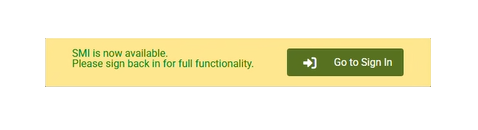
A message appears saying “SMI is now available.”
- Click the Go to Sign In button to sign out of ECF with limited functionality.
-
Sign in to ECF and SMI to resume using ECF with full functionality.
User Guide Feedback
E-mail Feedback
ECF Support
Immediate assistance: Contact the IT Service Desk (two options): ● Phone 612-348-6662 ● Submit online ticket
Additional resources: ECF Support ● ECF System Status ● Knowledge base ● ECF Sign In
